Install guide · Windows
Install VaakApp on Windows
About two minutes. Windows will show one or two warnings first, because VaakApp is new and not yet code-signed. This page shows exactly what to click.
Why Windows warns you
Windows checks who made a program. VaakApp isn’t code-signed yet, so Windows says the publisher is “Unknown” and asks you to confirm. That happens to every new program from a small developer until enough people have installed it. It is not a virus warning, and it is not about anything found in the file. We are getting the installer certified so these warnings go away.
What isn’t signed, and what is. The installer has no Microsoft publisher certificate yet (that’s the warning). Updates from inside the app are signed with VaakApp’s own key, and the app refuses any update that doesn’t match. Because Windows can’t confirm the installer came from us, the check falls to you: only ever download VaakApp from vaakapp.com, and check its checksum before you run it (how, at the bottom of this page).
I use Chrome ↓ I use Edge ↓ My download is stuck ↓
If you use Google Chrome
-
1Download and open the installer
Click Download for Windows. When it finishes, open VaakApp_…_x64-setup.exe (the middle of the name is the version number) from Chrome’s downloads or your Downloads folder. If Chrome asks whether to keep the file, choose Keep.
-
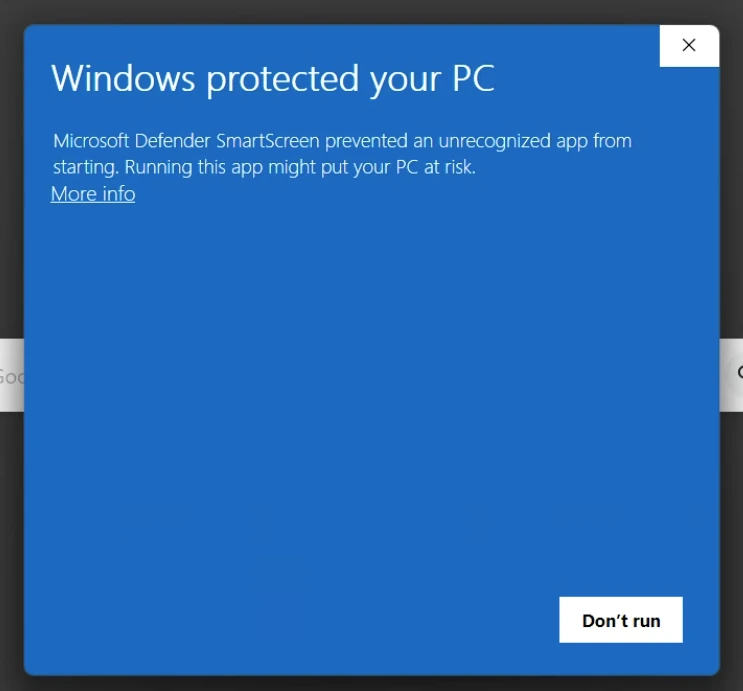
2Click “More info”
A blue Windows protected your PC screen appears. At first it only offers Don’t run. Click the small More info link under the message instead.
-
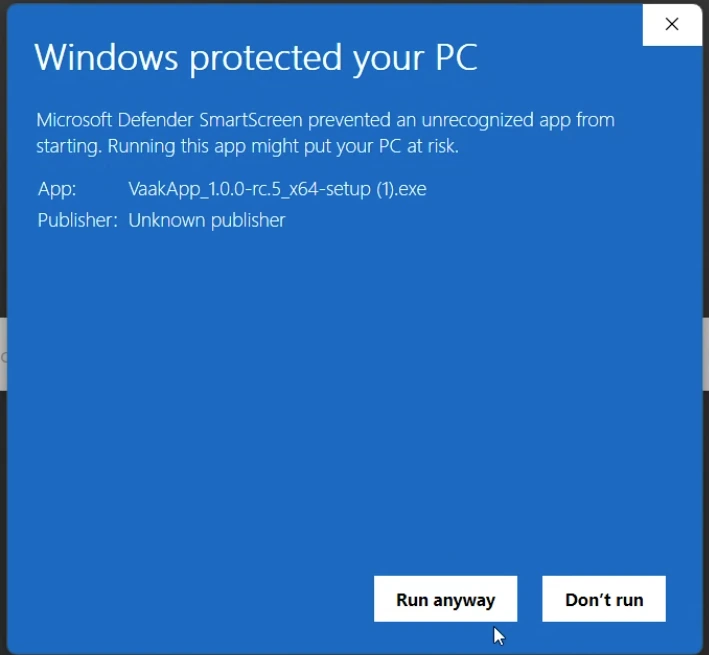
3Click “Run anyway”
The screen now shows App: VaakApp_…_x64-setup.exe and Publisher: Unknown publisher. Click Run anyway and the installer opens. Downloaded it more than once? The name may end in (1). It’s the same file.
If you use Microsoft Edge
-
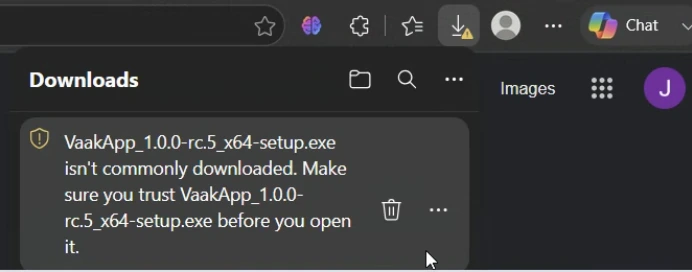
1Download the installer
Click Download for Windows. Edge holds the file back and says it isn’t commonly downloaded. That is expected. Panel closed? Click the download icon with the small warning triangle in Edge’s toolbar, or press Ctrl J.
-
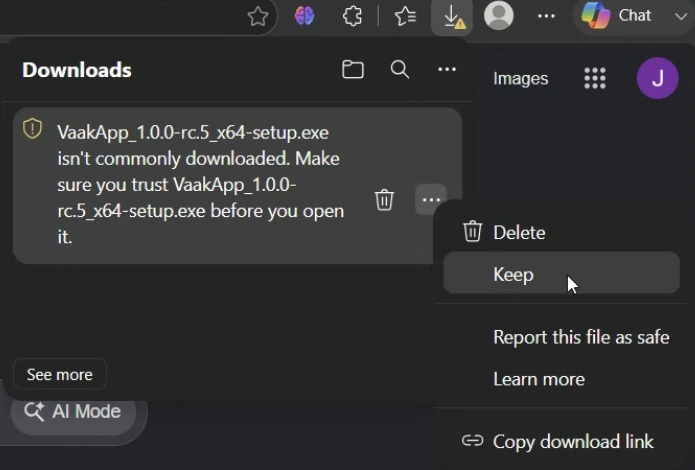
2Click “…” then “Keep”
Point at the VaakApp warning, click the … button beside the bin icon, and choose Keep. Don’t choose Delete.
-
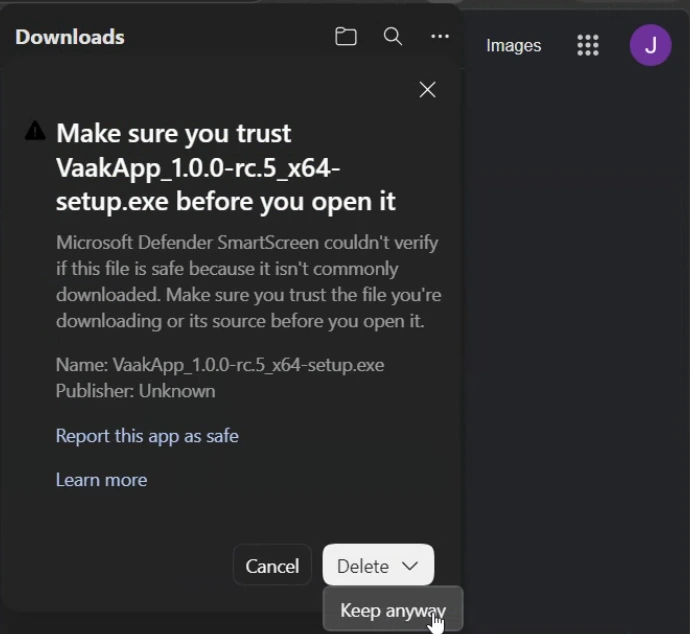
3Click “Show more”, then “Keep anyway”
Edge explains that it couldn’t verify the file. The main button says Delete, so open the arrow or Show more beside it first, then choose Keep anyway.
-
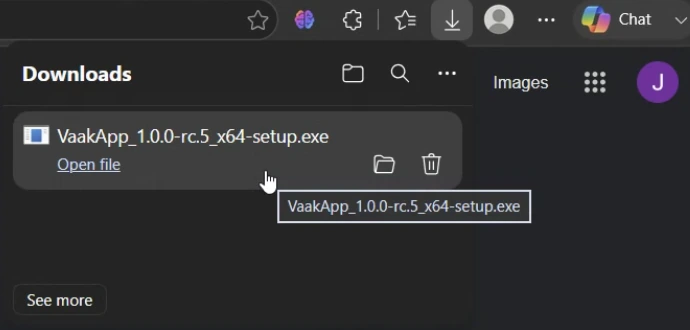
4Click “Open file”
The warning is gone and the installer is saved. Click Open file under its name. Edge has already asked, so Windows won’t show a second warning.
If your download is stuck: a file ending in “.crdownload”
If you find a file called something like Unconfirmed 961540.crdownload in your Downloads folder, the download was held back by the warning above and never finished. That file is not the installer and renaming it won’t help.
-
1Open the browser’s downloads
Press Ctrl J in Edge or Chrome. Find the VaakApp entry with the warning, and follow the Edge steps 2 to 4 above (in Chrome: Keep).
-
2Entry gone? Start again
Delete the .crdownload file, download VaakApp again, and this time choose Keep when the browser asks.
“Smart App Control blocked an app that may be unsafe”? Some Windows 11 PCs have Smart App Control switched on. It blocks programs that aren’t signed and has no button to go past it. Please don’t turn it off for us; email support@vaakapp.com and we’ll sort it out with you. Your trial hasn’t started.
In either browser: run the installer
-
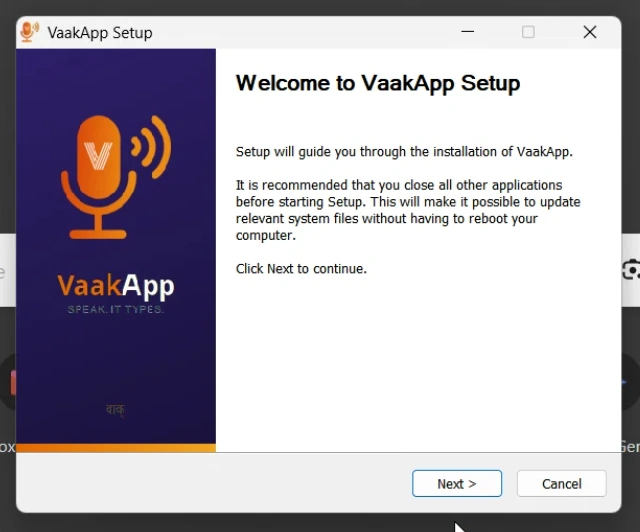
✓Click “Next” through to “Finish”
The VaakApp Setup window opens. Click Next and follow it to Finish. It installs for your Windows account only, so it won’t ask for an administrator password.
Your first dictation
1Click where the words should go
Any app with a text box: an email, a document, a chat.
2Press the shortcut and speak
Ctrl Shift U. A small pill appears while VaakApp is listening.
3Press it again to finish
Your words are typed where you clicked. VaakApp lives in the system tray at the bottom-right of the taskbar.
Have a licence key? Open VaakApp, choose License in the sidebar and paste the key from your email. How to activate
Check the file is ours (recommended)
VaakApp isn’t code-signed yet, so this check is how you confirm the installer is the one we published and wasn’t changed on the way.
-
1Open the list of checksums
Go to the checksums file. Find the line with the file name you downloaded, VaakApp_…_x64-setup.exe; the long code before it is the checksum.
-
2Ask Windows for your file’s checksum
Press Start, type PowerShell, press Enter, and paste:
Get-FileHash "$HOME\Downloads\VaakApp_*_x64-setup.exe" -Algorithm SHA256 -
3Compare the two
The Hash it prints must match the code from step 1 exactly (capital or small letters don’t matter). If it doesn’t, delete the file and download it again. Still different? Don’t run it; email support@vaakapp.com.